
Choose the correct tab
Use My Creations, Generated Results, Saved or Your Uploads based on where the item came from—not only its media type.
Creavax product guide
Library separates owned creations, generated output, saved references and personal uploads so every asset keeps a clear source and the correct actions.
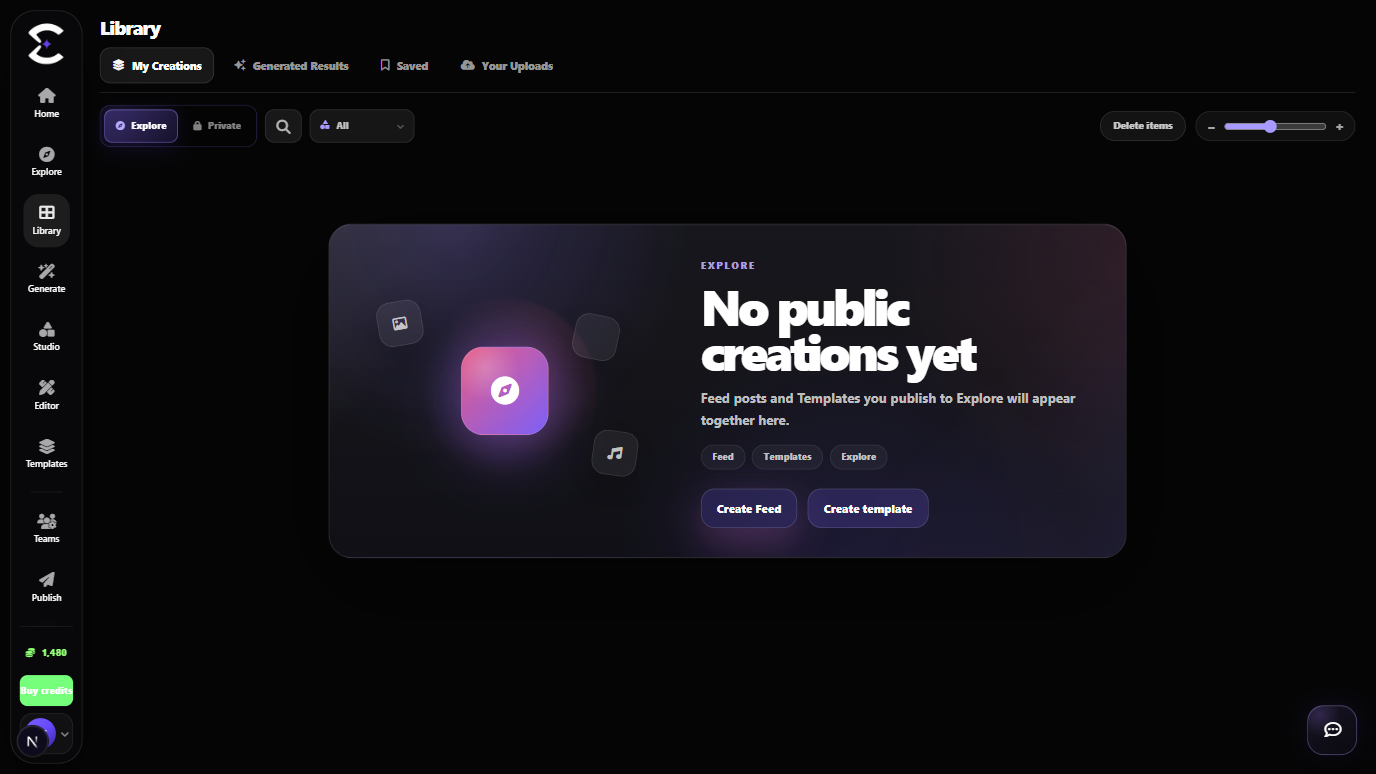
Use My Creations for Feed and Template projects, Generated Results for finished output, Saved for bookmarks, and Your Uploads for files you added yourself.
Quick start
Follow this order for a clean first pass. You can return to the deeper sections when a permission, billing choice or destructive action needs more context.
Use My Creations, Generated Results, Saved or Your Uploads based on where the item came from—not only its media type.
Apply the available scope, source and media filters before searching for a title or prompt keyword.
Review the media, source, prompt and actions before downloading, reusing, publishing or deleting anything.
Reuse a result in Generate, open a Template project, publish eligible work to Explore or send an image to Upscaler.
Core capabilities
Use these capabilities to understand what belongs here, what connects to another workspace and which actions change public, billing or account state.
Manage your Feed and Template projects, including public Explore items and private work, from one creation-focused section.
Review supported outputs created through Generate, Studio and Template runs without mixing them with manual uploads.
Keep bookmarked Feed posts and Templates. Removing an item from Saved does not delete the original public content.
Store personal reference media for future prompts. Generate and Studio use this same active upload collection.
Detailed workflow
These sections explain the decisions that matter most before you organize assets, spend credits, publish content, collaborate or change account access.
My Creations is for the content and reusable workflows you own. Generated Results is for supported output files produced by Creavax. Saved contains bookmarks only. Your Uploads contains files you deliberately added as private reference media.
Keeping these sources separate prevents an old attachment, generated output or deleted file from appearing as if it were a current upload.
Actions depend on the item type. A generated image may support Preview, Download, Reuse, Upscaler and Publish to Explore. A Template project opens in its editor. A Saved card offers Remove from saved rather than deleting the original content.
Deleting a Generated Result can also affect the source shown in Generate or Studio. Creavax therefore shows a destructive confirmation before removing linked source media.
The upload picker in Generate and Studio uses the active records shown in Library > Your Uploads. Local history, old prompt attachments and Generation inputs stay separate from that reusable upload collection.
When an upload is deleted from Library, reopening the prompt picker should fetch the collection again so the removed file no longer appears.
Best practices
Frequently asked
Quick answers to the questions that most often come up before using this workspace.
The picker shows active items from Library > Your Uploads. Generated Results, old attachments and deleted uploads stay outside that reusable upload list.
No. It removes only your bookmark. The public Feed post, Template and original owner content remain available unless a separate owner action removes them.
It can when the Library item is the stored source used by those workflows. Read the deletion warning carefully before confirming.
Continue learning
Continue with the next workspace only when it supports the same task, billing context or publishing flow.
Ready to use the real workspace?
Open Library, complete one small real task and return to this page when you need the detailed workflow.