Professional layer-based control
Crop, resize, move, draw, erase, adjust, layer and refine your image with familiar visual editing tools directly in the browser.
A browser-based image editor that combines professional layer-based controls with AI. Work manually with layers and editing tools, type a change into the prompt bar, or select one exact region and let AI modify only that part.

Replace the selected area with a violet glass cap. Keep the product shape.
You should not need to leave Creavax every time an AI image is almost right. Open it in the Image Editor, refine composition and details with familiar editing tools, use AI for the difficult changes, then continue refining the result in the same workspace.
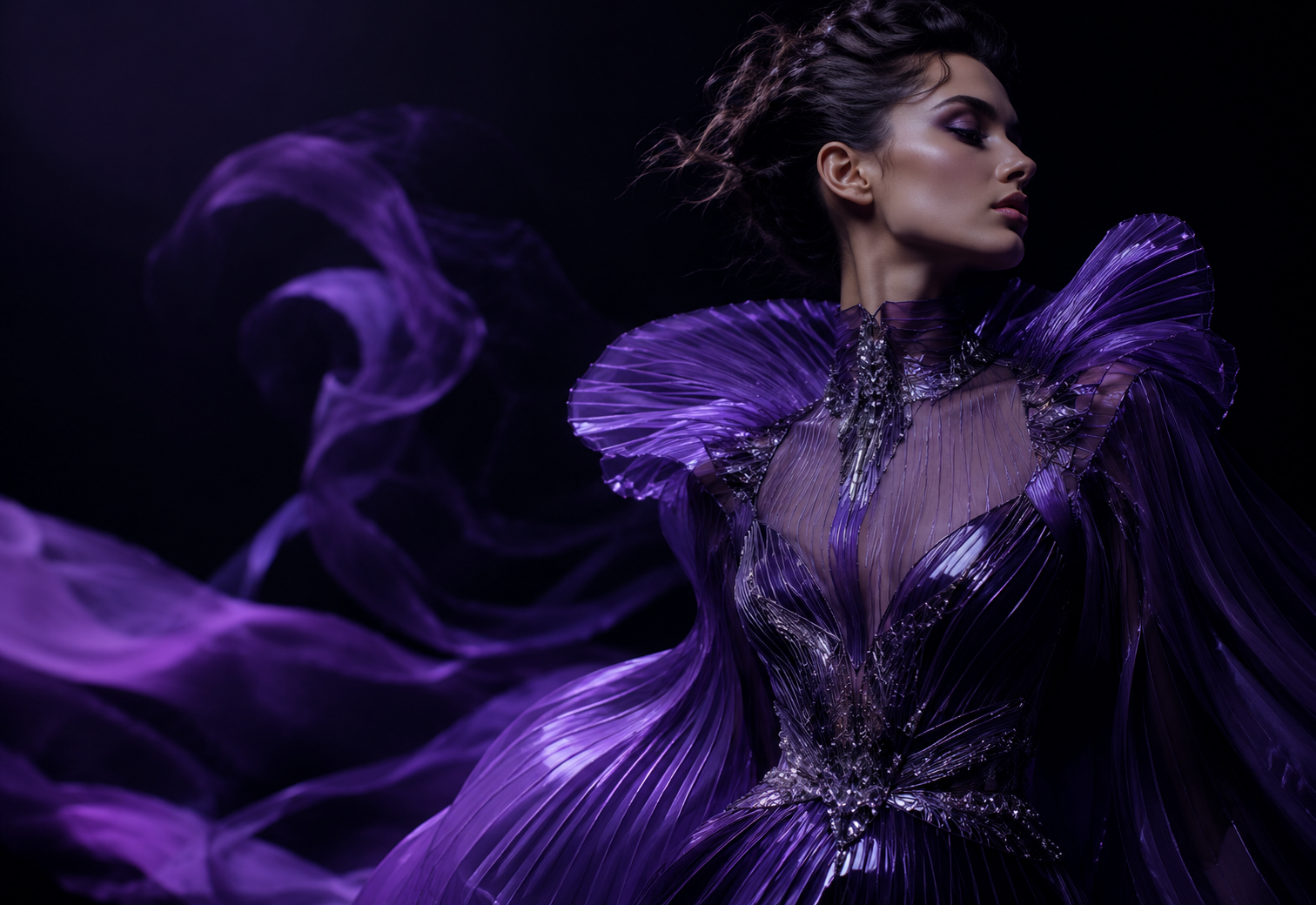


The editor combines three editing modes — precise manual control, prompt-based changes and targeted AI Region Edit — with layers, history and export tools that keep the workflow organized.
Crop, resize, move, draw, erase, adjust, layer and refine your image with familiar visual editing tools directly in the browser.
Describe the change you want in plain language. Creavax sends the instruction to the selected AI model and brings the result back into the editor.
Select a rectangle or draw a lasso around one part of the image, then tell AI what should change only inside that selected area.
Keep the original, AI variations and manual edits separated so you can compare, undo and export without destroying the source image.
When doing the edit by hand would take too long, type a plain-language instruction into the prompt bar. Ask for a new background, cleaner lighting, retouching, object removal, a material change or another visual direction, then keep working with the result.
Open Image Editor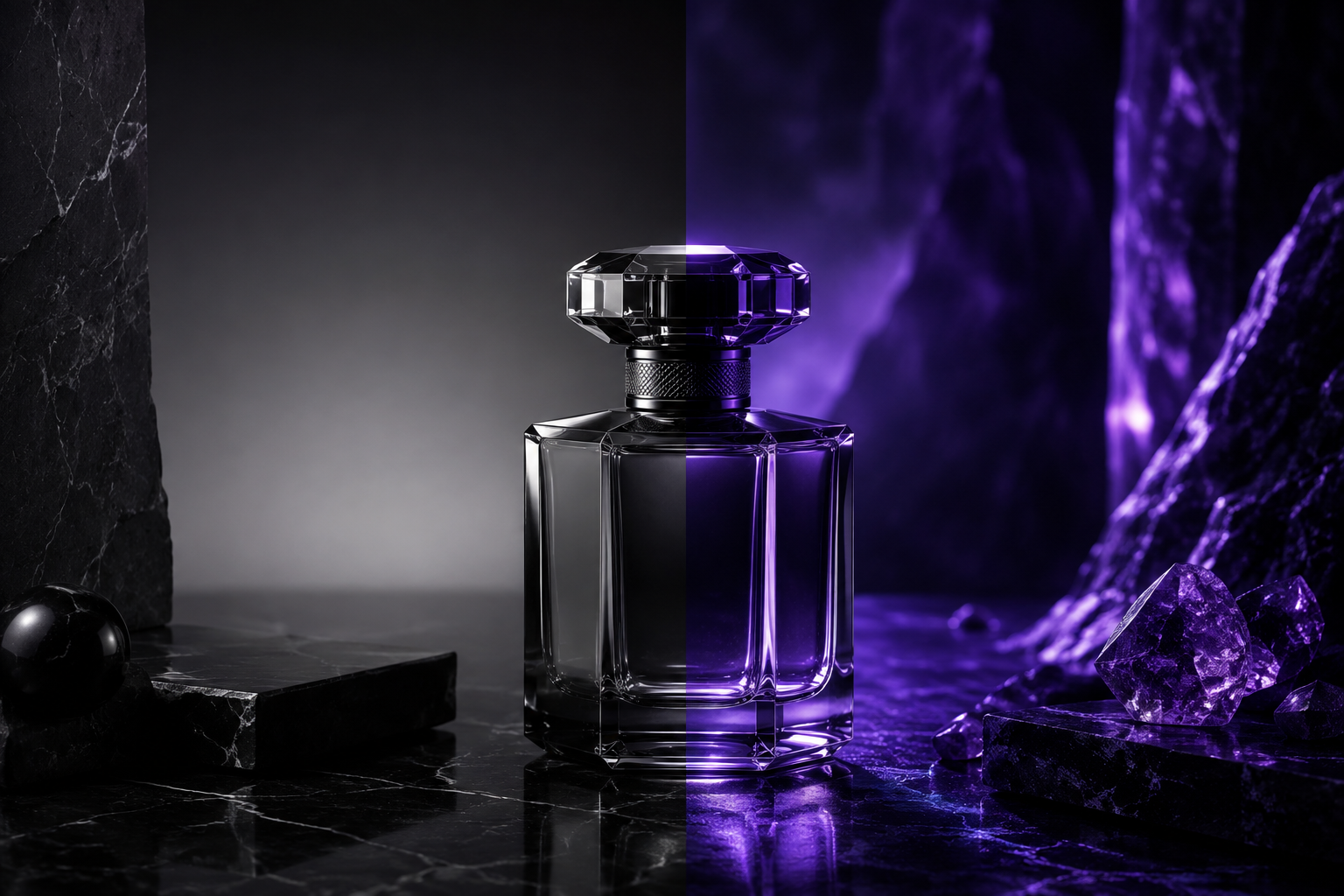 PROMPT EDIT
Make the background a dark premium studio with soft violet rim lighting.
Use Marquee for a rectangular selection or Lasso for an irregular shape. Creavax creates a mask from your selection and sends it with the source image so the edit is targeted to that region while the rest of the image is preserved.
Open Image Editor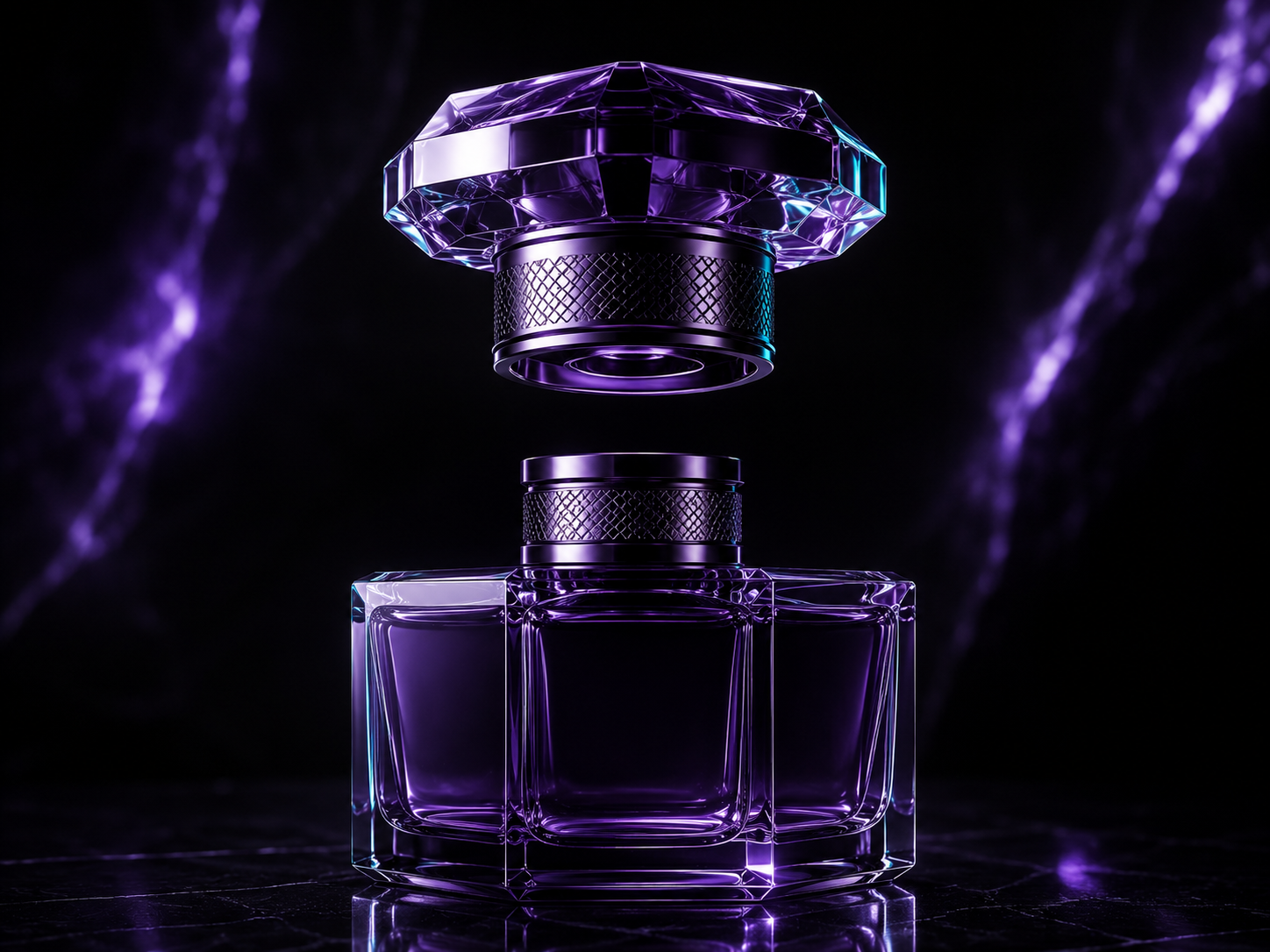
The AI is optional. Crop, resize, move, select, draw, erase, adjust image properties and organize your work with layers whenever you want direct control instead of generation.
Open Image Editor MANUAL CONTROL
Open the image, make the smallest useful change, keep every important version and export only when the result is ready.
Upload a file or continue from an image you already created inside Creavax.
Use canvas tools for precision, or type the change you want into the AI prompt bar.
Use Marquee or Lasso when the AI should change only a specific object or area.
Receive the AI result, continue editing with layers and export when the image is ready.
Use manual tools, describe an edit with a prompt, or target one region without changing the rest of the image.
Start editing