
Preserve the original
Every processed result stays connected to its source so you can compare, retry or return to the untouched file.
Increase resolution, restore detail, compress files and export delivery-ready images directly in Creavax—while keeping the original, output settings and before/after review connected.
Upscaling is most useful after the composition is approved. Creavax combines resizing, restoration, compression, metadata protection and export in one clear finishing workflow.
Every processed result stays connected to its source so you can compare, retry or return to the untouched file.
Balance output size, format, resolution and compression for web, print or further editing.
Preview the result, open before/after only when needed and export one image or a complete batch.
Choose the strongest source, set the real delivery requirements and inspect risky details before downloading the output.
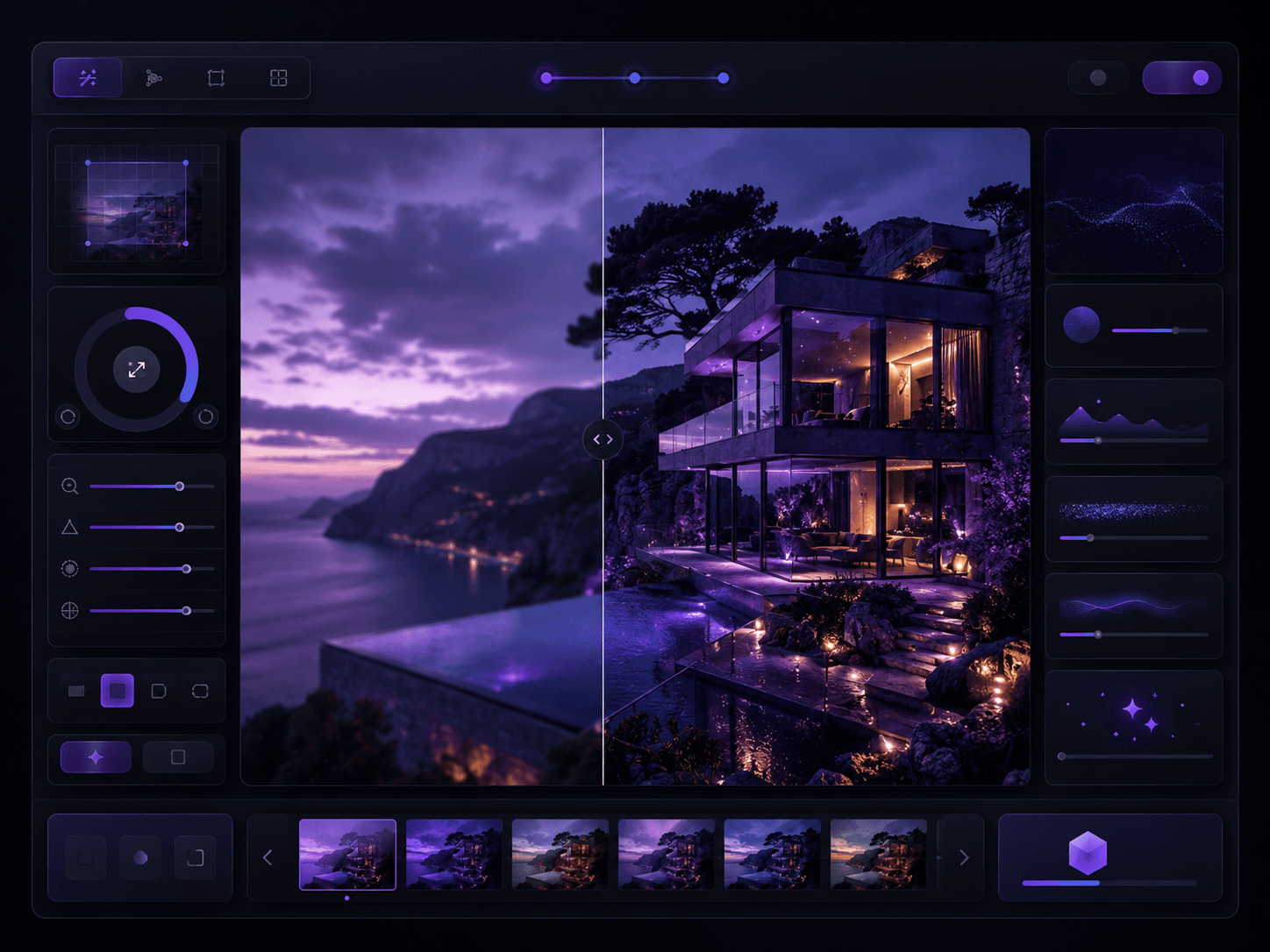
Upload an image or send the strongest result from Generate or Library after composition is approved.
Choose output dimensions, aspect ratio behavior, file type and compression target.
Adjust clarity and sharpening carefully to improve detail without creating artificial texture.
Open before/after when needed, inspect faces, text and edges, then download one image or the batch.
 Increase resolution
Increase image dimensions while preserving composition, edges and useful source detail.
 Restore the final
Recover perceived sharpness and texture from soft, compressed or lower-quality sources.
 Optimize delivery
Reduce delivery size with explicit quality, target-size and export-format controls.
Resize, rotate, restore, compress and export without mixing creative generation settings into the finishing workflow.
Set exact width and height, lock the source ratio or apply a delivery preset.
Tune enhancement carefully for portraits, products, artwork and architecture.
Choose PNG, JPEG, WebP and compatible background handling for the destination.
Balance visual quality against a target file size instead of guessing through repeated exports.
Remove embedded metadata and location information from the exported output.
Process multiple files and download completed outputs together when the settings match.
Reuse the same scale, format and compression settings for recurring destinations.
Keep image dimensions and delivery quality aligned across a product or campaign set.
Move selected generations from Library into a repeatable enhancement and export workflow.
Apply enhancement only after the strongest composition is selected, then inspect the details that matter most.





Upscale after the composition, subject and color direction are approved. Enhancing every draft wastes time and storage.
Files selected from the Creavax Library can be transferred through the existing asset workflow without creating an unnecessary duplicate upload.
Aggressive enhancement may invent detail around eyes, typography, labels and hard edges. These areas should be reviewed at full size.
Yes. The output can be resized, enhanced and exported with a selected format, quality level or target file size in one run.
The comparison view remains closed after processing and opens only when you click Before / after.
Turn an approved image into a delivery-ready file without disconnecting it from the creative workflow.